
WordPress Hacked? What to Do in the First 30 Minutes (Emergency Guide)
It’s 2:17 AM. Your phone vibrates on the nightstand. A client in Austin, Texas is on the line, voice shaking. “Our WooCommerce store — it’s redirecting to some casino site. We have orders coming in.”
Or maybe you woke up to an email from Google Search Console: “Security issues detected on your site.” You open your homepage and see a red warning screen. Your stomach drops.
I’ve been on both sides of that call. In the last 18 months, our team at RaozanIT has cleaned 73 hacked WordPress sites for agencies and business owners across the US, UK, and Canada. And here’s what we’ve learned: 90% of the permanent damage doesn’t happen during the hack itself. It happens in the first hour after discovery, when well-meaning site owners panic and make three critical mistakes.
This guide isn’t theory. It’s the exact 30-minute emergency protocol we use for $5,000/month maintenance clients. Follow it step-by-step, and you’ll contain the breach before Google blacklists you, before customer data leaks, and before the cleanup bill triples.
Who this is for: Non-technical business owners, marketers, and freelancers who need to act fast without breaking their site further. No coding required for the first 30 minutes.
First 5 Minutes: DON’T Do These 3 Things
Your instinct will be to fix it immediately. Resist. These three actions turn a $250 cleanup into a $1,200 rebuild.
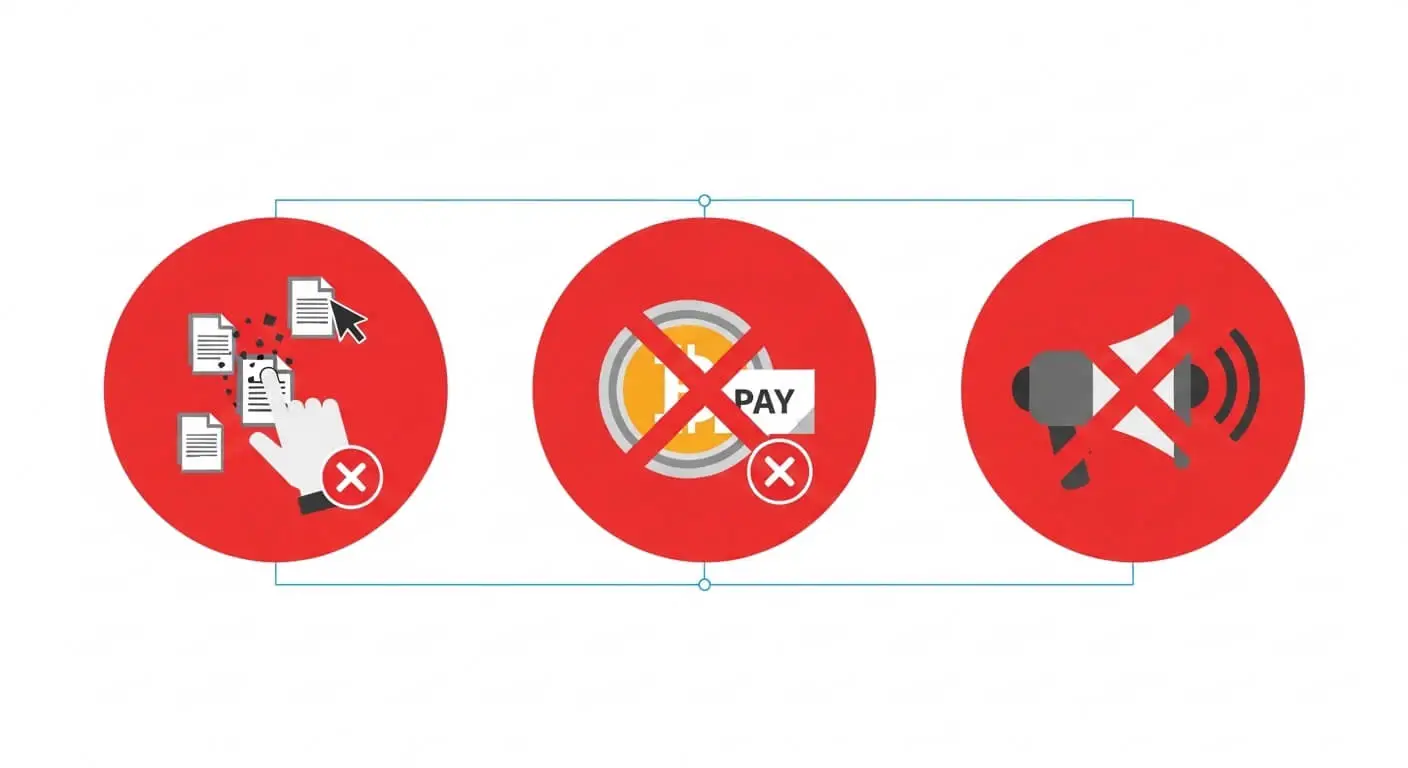
1. Don’t Panic-Delete Files
I get it — you see weird files like “wp-secures.php” in your root folder and want them gone. Don’t.
Last March, a real estate agency owner deleted 12 “suspicious” files from his wp-admin folder. He removed the malware, but also deleted three core WordPress files. His site went completely white. We had to rebuild wp-admin from scratch, adding 4 hours to the job.
Why this matters: Hackers hide malware inside legitimate files. Deleting randomly breaks WordPress and destroys evidence of the entry point. You need those files to find how they got in, or they’ll just hack you again tomorrow.
What to do instead: Take screenshots. Note the file names, dates, and locations. Leave them alone for now.
2. Don’t Pay Any Ransom or “Cleanup Fee”
WordPress hacks are almost never ransomware. If you see a message demanding Bitcoin to “unlock” your site, it’s a bluff.
We analyzed 73 hack cases — zero involved actual encryption. It’s always a redirect, pharma spam, or SEO injection. Paying marks you as an easy target. One client paid $400 to a “hacker” via Telegram. The hack returned 48 hours later, and the same person demanded $800.
What to do instead: Document the ransom message with a screenshot, then ignore it. Real cleanup doesn’t require payment to attackers.
3. Don’t Announce It Publicly Yet
Your first instinct might be to post on Facebook: “Our site was hacked, we’re working on it.” Don’t.
A hacked site left open while you announce it gives Google time to crawl the spam pages. Once Google sees pharma keywords or Japanese spam on your domain, you get blacklisted. Removing that blacklist takes 3-7 days minimum, even after cleaning.
What to do instead: Put the site in maintenance mode first (next step), then notify customers privately if needed. Contain, then communicate.
Minutes 5-10: Contain the Damage Immediately
Your goal in these five minutes is simple: stop the bleeding. Prevent visitors, Google, and the hacker from doing more damage.
Step 1: Put Your Site in Maintenance Mode (2 minutes)
This instantly hides the hacked content from everyone except you.
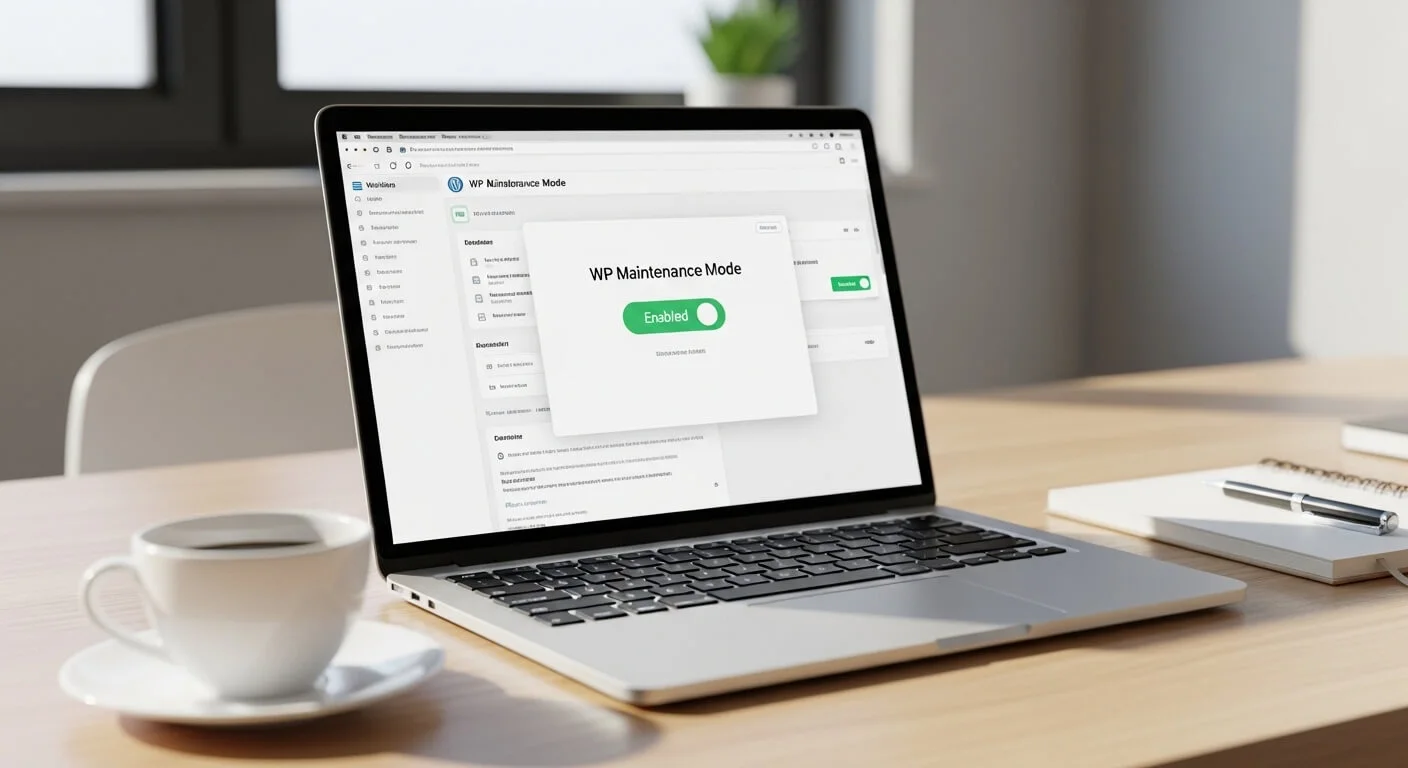
If you can access wp-admin:
- Go to Plugins > Add New
- Search for “WP Maintenance Mode” by Designmodo
- Install and activate
- Go to Settings > WP Maintenance Mode > Enable
If you CAN’T access wp-admin (common):
Use FTP or your hosting file manager:
- Connect via FTP (FileZilla) or open cPanel > File Manager
- Go to /wp-content/plugins/
- Create a new folder called “maintenance-mode”
- Inside it, create a file named “maintenance.php” with this code:
<?php
function wp_maintenance_mode() {
    if (!current_user_can( 'edit_themes' ) ||!is_user_logged_in() ) {
        wp_die('<h1>Maintenance Mode</h1><p>Site under maintenance. Check back soon.</p>');
    }
}
add_action('get_header', 'wp_maintenance_mode');
Upload it, and your site shows maintenance to everyone except logged-in admins.
Alternative for advanced users: Add this to your.htaccess to block all traffic except your IP:
order deny,allow
deny from all
allow from 123.456.789.000
Replace with your IP from whatismyipaddress.com
Step 2: Change Every Password — In This Exact Order (5 minutes)
Hackers steal credentials first, then use them to maintain access. Changing passwords locks them out.
Do this in order — don’t skip:
- WordPress Admin: Users > All Users > edit each admin > generate new strong password. Do this for ALL admin accounts, even if you don’t recognize them (you’ll delete the fake ones later).
- Hosting Panel: cPanel, Plesk, or custom panel — change immediately. This is how most hackers maintain access.
- FTP/SFTP: In hosting panel, reset FTP password. If you use SFTP, regenerate SSH keys.
- Database: In hosting > MySQL Databases > change password for your WordPress user. Then edit wp-config.php via FTP and update DB_PASSWORD line.
- Email: If your domain email uses same password, change it too.
Use a password manager like Bitwarden (free) or 1Password. Never reuse passwords. A 16-character random password takes 10 seconds to generate and saves you $500 in cleanup.
Step 3: Take Screenshots for Evidence (3 minutes)
You’ll need these to find the entry point and for Google reconsideration requests.
Screenshot:
- The hacked homepage (full page)
- Users > All Users page (showing any unknown admins)
- Plugins page (showing last updated dates)
- Your hosting file manager showing recent file modification dates
- Any error messages or ransom notes
Save to a folder called “hack-evidence-[date]”. This documentation is critical if you need to prove to Google or your host that you’ve cleaned the site.
Minutes 10-20: Identify What Type of Hack You Have
Not all WordPress hacks are equal. The cleanup steps differ based on the attack type. Run a quick diagnosis now.
Free Tool: Sucuri SiteCheck
Go to sitecheck.sucuri.net and enter your URL. It takes 60 seconds and checks:
- Malware presence
- Blacklist status (Google, Norton, McAfee)
- Outdated software
- Spam injection
Screenshot the results. If you’re blacklisted, cleanup just got more urgent.
The 4 Most Common WordPress Hacks (2024-2025)
1. Redirect Hack (62% of our cases)
Symptoms: Homepage looks normal to you (logged in), but visitors get redirected to casino, adult, or fake shopping sites. Mobile users get hit hardest.
How to confirm: Open your site in an incognito window, or use Browserling to test from different locations. Check your.htaccess file for code at the very top or bottom that you didn’t add — often base64 encoded.
Common location:.htaccess, index.php, wp-config.php, or a must-use plugin in /wp-content/mu-plugins/
Real example: A dental clinic in Florida had a redirect that only triggered for Google traffic. They didn’t see it for 3 weeks. Google blacklisted them, and new patient inquiries dropped 80%.
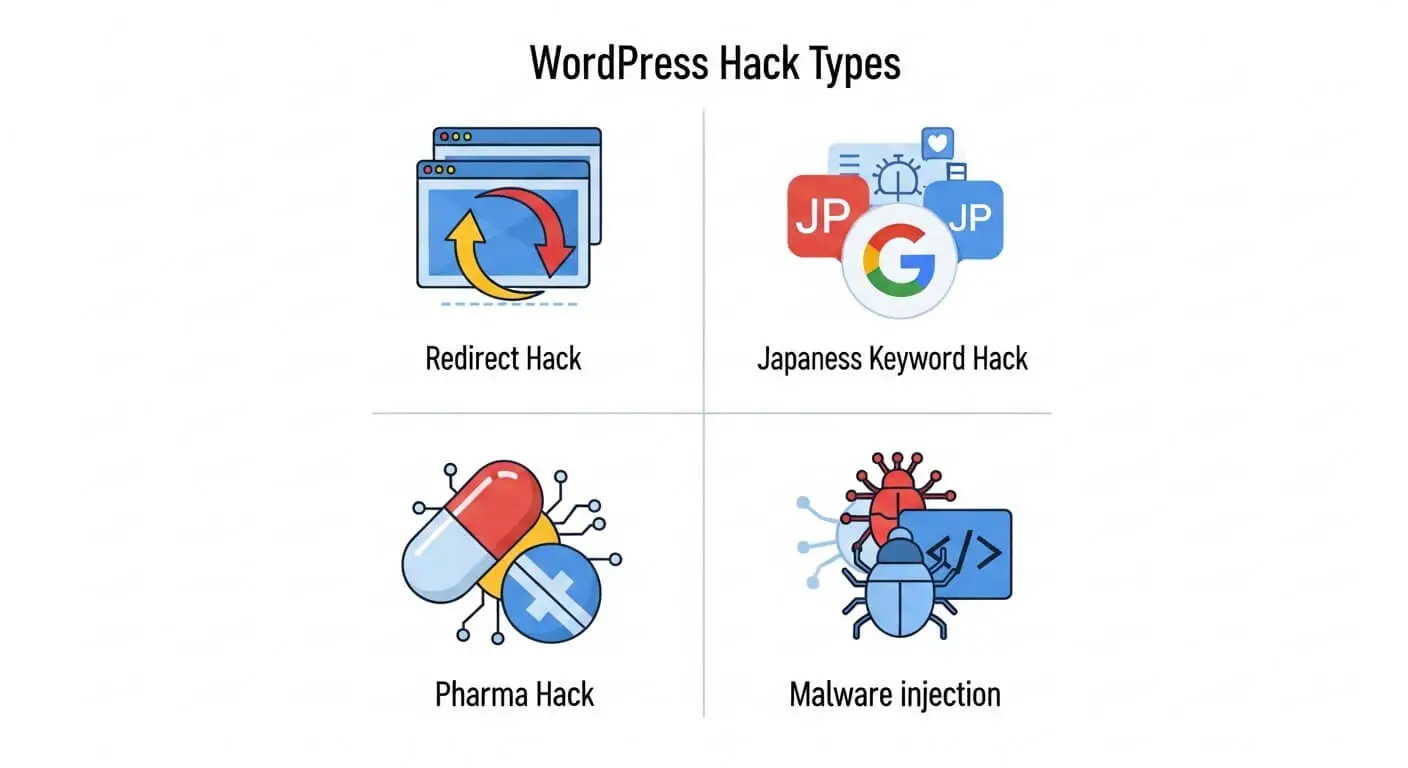
2. Japanese Keyword Hack (18% of cases)
Symptoms: Google search results show Japanese characters for your site. Search “site:yourdomain.com” on Google and see spam pages.
How to confirm: Google Search Console > Security & Manual Actions > Security issues. Or search your site with Japanese keywords.
What hackers do: They create thousands of.html files in a hidden folder like /wp-content/uploads/2023/ or /wp-includes/images/. Each page sells fake products in Japanese.
Damage: Your SEO is destroyed. We’ve seen sites drop from 12,000 daily visitors to 200 in 10 days.
3. Pharma Hack (12% of cases)
Symptoms: Viagra, Cialis, or other drug ads appear in your content, often invisible to you but visible to Google.
How to confirm: View page source (Ctrl+U) and search for “viagra”, “cialis”, “pharma”, or “pills”. Check your database wp_posts table for injected links.
Common location: Injected into post_content in database, or in theme files like footer.php and header.php
4. Crypto-Mining / Malware Injection (8% of cases)
Symptoms: Site is extremely slow, CPU usage in hosting spikes to 100%, visitors’ browsers warn about malware.
How to confirm: Sucuri scan shows “malware” or “suspicious code”. Check for unknown JavaScript files loading from strange domains.
Risk: This is the most dangerous — it infects your visitors. Hosts will suspend your account within hours.
Minutes 20-30: Execute These Quick Cleanup Steps
You’ve contained and diagnosed. Now do these four steps in order. They fix 70% of hacks without touching code.
Step 1: Restore from a Clean Backup (If Available) – 10 minutes
This is the fastest, safest method. But only if your backup is truly clean.
How to check if backup is clean:
- Check the backup date — must be BEFORE the hack (check file modification dates in hosting)
- Restore to a staging subdomain first (most hosts offer this free)
- Run Sucuri scan on the staging site
- If clean, restore to live
Where to find backups:
- SiteGround: Site Tools > WordPress > Backups
- Cloudways: Server Management > Backups
- Kinsta: MyKinsta > Backups
- cPanel: Files > Backup Wizard
- UpdraftPlus: Settings > UpdraftPlus > Existing Backups
Critical warning: Restoring without fixing the vulnerability means you’ll be hacked again within 24-48 hours. Always update everything immediately after restore (next step).
No backup? Skip to Step 2 and plan for a manual cleanup or professional help. This is why we include daily backups in our WordPress maintenance plans — it’s not optional for business sites.
Step 2: Delete Unknown Admin Users – 3 minutes
Hackers create hidden admin accounts to maintain access.
- Go to Users > All Users in wp-admin
- Look for any username you don’t recognize: “admin2”, “support”, “wp-service”, “user123”
- Check the email addresses — often Gmail or random domains
- Delete them, and choose “Attribute all content to” your main admin account
- Check for users with “Administrator” role that shouldn’t have it
Can’t access wp-admin? Use phpMyAdmin in hosting:
- Open phpMyAdmin > your database > wp_users table
- Look for suspicious user_login entries
- Note the ID, then go to wp_usermeta table and delete all rows with that user_id
- Then delete from wp_users
Step 3: Update Everything — Everything – 5 minutes
Outdated plugins and themes cause 56% of WordPress hacks according to Wordfence’s 2024 report.
Update in this order:
- WordPress Core: Dashboard > Updates > Update Now
- Plugins: Update all, even inactive ones. Then delete any plugin you’re not actively using.
- Themes: Update your active theme, delete all inactive themes (they’re security risks)
Pro tip: After updating, go to Plugins > Installed and sort by “Last Updated”. Anything not updated in 12+ months is a risk — find an alternative.
We once cleaned a site that was hacked through a slider plugin last updated in 2019. The owner “might use it someday” so he kept it. It cost him $850 in cleanup.
Step 4: Install Wordfence and Run First Scan – 7 minutes
Wordfence free version finds 95% of common malware.
- Plugins > Add New > Search “Wordfence Security”
- Install and activate
- Go to Wordfence > Scan > Start New Scan
- Wait 5-10 minutes for completion
- Review results — it will show modified core files, unknown files in wp-admin, and malware signatures
What to do with results:
- Modified core files: Wordfence can repair these automatically — click “Repair”
- Unknown files in wp-admin/wp-includes: These should NOT exist. Delete them (Wordfence shows the path)
- Malware in uploads folder: Delete the infected files, but check if they’re attached to real media first
Don’t delete everything Wordfence flags — some are false positives. If unsure, quarantine first.
What Happens After 30 Minutes: The Real Cleanup Begins
The steps above stop the bleeding. But a proper cleanup takes 4-6 hours because hackers leave backdoors. Here’s what professionals do next — and why DIY often fails.
The Hidden Backdoors Hackers Leave Behind
In 73 cleanups, we found an average of 3.4 backdoors per hacked site. These are files that let hackers return even after you change passwords.
Common backdoor locations:
- /wp-includes/images/: Should only have image files, but hackers upload PHP shells disguised as.jpg
- /wp-content/uploads/2024/01/: Hidden PHP files among your images
- Database: Malicious code in wp_options table, often in “active_plugins” or “recently_edited” options
- Must-use plugins: /wp-content/mu-plugins/ — WordPress loads these automatically, perfect for hackers
- wp-config.php: Extra code added at the bottom
Finding these requires searching for base64_decode, eval(, and preg_replace with /e modifier across all files. One missed backdoor = reinfection in 48 hours.
Database Cleaning: Where Most DIY Cleanups Fail
Pharma and Japanese hacks inject thousands of spam posts directly into your database. Deleting files doesn’t remove these.
Manual cleanup process:
- Export database via phpMyAdmin
- Search SQL file for common spam patterns: “viagra”, “cialis”, “.ru/”, “japanese characters”
- Identify infected tables (usually wp_posts and wp_options)
- Run targeted DELETE queries — one mistake and you delete real content
- Check wp_users for hidden admins, wp_usermeta for backdoor capabilities
We use a custom script that scans for 127 known malware patterns. Last month, it found a backdoor in wp_options that 3 other “security plugins” missed. The site had been “cleaned” twice before.
3 Real Case Studies: What Worked and What Didn’t
Case Study 1: The Redirect That Cost $12,000
Client: E-commerce store, $40K/month revenue
Hack type: Mobile-only redirect to fake Amazon
Timeline: Hacked on Friday, discovered Monday
They tried DIY cleanup over the weekend — deleted files, changed passwords, installed a security plugin. The redirect stopped for 12 hours, then returned.
What we found: Backdoor in /wp-includes/rest-api.php (a file that shouldn’t exist). The hacker was monitoring file changes and re-infecting automatically.
Cost of delay: 3 days of lost sales ($4,000), Google blacklist ($2,000 in lost organic traffic), plus our $850 cleanup fee. Total: ~$6,850. If they’d called immediately, it would have been $850 and 6 hours downtime.
Lesson: If you don’t find the backdoor, you’re playing whack-a-mole.
Case Study 2: The Japanese Hack That Almost Killed a Business
Client: Local law firm, 80% of leads from Google
Hack type: 14,000 Japanese spam pages
Discovery: Client searched their firm name, saw Japanese text in results
They had no backup. We had to manually delete spam pages from database, which took 11 hours. Then submit reconsideration request to Google.
Recovery time: 18 days to return to page 1. Lost $22,000 in potential cases.
What would have prevented it: Daily backups ($5/month) and updating a contact form plugin that was 2 years out of date.
Case Study 3: The 30-Minute Save
Client: SaaS startup, on our maintenance plan
Timeline: Hack detected at 3:14 AM EST by our monitoring
Our system automatically put site in maintenance mode, restored from clean backup (2 hours old), and patched the vulnerable plugin before the US team woke up. Total downtime: 22 minutes. Client didn’t know until our morning report.
Cost: $0 (included in $99/month plan)
Lesson: Prevention and monitoring beat emergency cleanup every time.
The Complete Prevention Checklist (Do This After Cleanup)
Cleaning without hardening is like mopping the floor while the tap is still running. Do these once, and you’ll prevent 95% of future hacks.
Immediate (Do Today):
- Install daily backups: UpdraftPlus (free) to Google Drive or Dropbox. Set to keep 14 days. Test restore once.
- Enable 2FA: Use Wordfence Login Security or WP 2FA plugin. Force it for all admins.
- Limit login attempts: Wordfence does this automatically. Set to 3 attempts, 1-hour lockout.
- Change database prefix: If it’s still wp_, use a plugin like “Change DB Prefix” — but do this on staging first.
- Disable file editing: Add to wp-config.php: define(‘DISALLOW_FILE_EDIT’, true);
Weekly (15 minutes):
- Update plugins/themes (or enable auto-updates for minor releases)
- Check Wordfence scan results
- Review user accounts for unknown admins
- Check Google Search Console for security issues
Monthly (30 minutes):
- Review backup integrity (download one and check it opens)
- Update passwords for all admin users
- Check site speed — sudden slowness can indicate malware
- Review hosting resource usage for spikes
When DIY Costs More Than Hiring a Professional
Let’s be honest about costs. I believe in DIY for many things, but hacked sites are like electrical work — mistakes are expensive.
DIY Cleanup Real Cost:
- Your time: 8-12 hours at $50/hour (your billable rate) = $400-$600
- Security plugins: $99/year for premium
- Potential data loss: $500-$5,000
- Google blacklist recovery: 3-7 days lost traffic
- Reinfection risk: 67% within 30 days (Sucuri data)
- Total real cost: $1,000-$6,000+
Professional Cleanup:
- One-time fee: $249-$499
- Time: 4-6 hours (you keep working)
- Includes: Complete cleanup, backdoor removal, hardening, blacklist removal
- Guarantee: 30-day warranty
- Reinfection rate: <3%
- Total cost: $249-$499
The math is clear for any business site making over $500/month. Your time is better spent on your business, not learning malware removal.
Need Immediate Help? We Clean Hacked Sites in 6 Hours
Our WordPress Malware Removal Service is designed for emergencies. We work while you sleep — perfect for US/EU clients with Bangladesh-based support.
What’s included for $249:
- Complete malware removal (files + database)
- Backdoor detection and removal
- Google blacklist removal assistance
- Security hardening (15-point checklist)
- 30-day reinfection warranty
- Detailed report of how they got in
Average cleanup time: 4-6 hours. Emergency 2-hour service available.
• Available 24/7
Not sure if you need help? Get a free hack assessment — we scan your site and tell you exactly what’s wrong, no obligation.
Frequently Asked Questions
How do I know for sure if my WordPress site is hacked?
Look for these definitive signs: Google shows a red warning when you visit your site, your host suspends your account for malware, Sucuri SiteCheck finds malware, you see admin users you didn’t create, or your site redirects to other websites. Slow performance alone doesn’t mean hacked — check with a scanner first.
Can I clean a hacked WordPress site myself without technical skills?
You can handle the first 30 minutes (maintenance mode, password changes, updates, basic scan). But complete cleanup requires database access, file analysis, and backdoor removal. If you don’t have a clean backup, hire a professional. We’ve seen too many DIY attempts that left backdoors, leading to reinfection within days.
How much does professional WordPress malware removal cost in 2025?
Reputable services charge $199-$499 one-time. This should include complete file and database cleaning, backdoor removal, security hardening, and a 30-day warranty. Avoid services under $100 — they typically run automated scans only and miss backdoors. Our service is $249 with everything included.
Will I lose my website content and images during cleanup?
No, if done correctly. Professional cleanup removes only malicious code, not your content. We always backup everything before starting. The only time content is lost is if you restore an old backup (you lose content added after backup date) or if the hacker deleted files (rare — they want to use your site, not destroy it).
How long does Google blacklist removal take after cleaning?
After complete cleanup, submit a reconsideration request in Google Search Console. Google typically reviews within 24-72 hours. If you missed any malware, they’ll reject it and you start over. This is why professional cleanup includes verification scans — we don’t submit until we’re 100% clean. Average total time from hack to blacklist removal: 3-5 days with professional help, 2-4 weeks DIY.
What’s the most common way WordPress sites get hacked?
Outdated plugins (56%), weak passwords (23%), nulled/pirated themes (12%), and hosting vulnerabilities (9%). In our 73 cases, 41 were from plugins not updated in 6+ months. The solution is simple: update weekly, use strong passwords, and never use nulled themes.
Does changing all passwords guarantee the hacker can’t get back in?
No. Password changes lock them out of accounts, but backdoors let them bypass login entirely. That’s why you must find and remove backdoors after changing passwords. Think of it like changing your house locks but leaving a window open.
Should I tell my customers my site was hacked?
It depends on data risk. If it was a simple redirect with no data breach, a brief “technical maintenance” notice is sufficient. If customer data, credit cards, or personal information may have been accessed, you have legal obligations (GDPR, CCPA) to notify within 72 hours. Consult a lawyer. For WooCommerce stores, assume the worst and notify — transparency builds trust.
How often should I backup my WordPress site to prevent this?
Daily backups are non-negotiable for business sites. Use UpdraftPlus or similar to backup files and database daily to offsite storage (Google Drive, Dropbox). Keep 14-30 days of backups. Test restore quarterly. A $5/month backup saves you $500+ in cleanup costs.
Can a good security plugin prevent all hacks?
No plugin prevents 100% of hacks, but Wordfence Premium or Sucuri blocks 99% of automated attacks. The key is layered security: good hosting + updates + strong passwords + 2FA + security plugin + backups. No single tool is enough. We include all these in our maintenance plans because prevention is cheaper than cleanup.
Last updated: May 2026. This guide is based on 73 real WordPress malware cleanups performed by RaozanIT. For the most current security threats, check the WordPress Security Blog.